You're in the field. A brilliant indigo bunting lands twenty yards away. You raise your binoculars for a better look – stunning. You fumble for your phone, line it up behind the eyepiece... and get a blurry, vignetted mess. Sound familiar? For years, that was me. I'd see incredible wildlife through my scope and have nothing to show for it but a shaky memory. Then I discovered digiscoping. Not the intimidating, expensive version, but the simple art of marrying a smartphone to an existing spotting scope or binoculars.
This isn't about buying a $3000 camera lens. It's about unlocking the potential of the camera you already own. With a few key pieces of affordable gear and some counter-intuitive techniques, you can capture frame-filling images of birds, wildlife, and distant landscapes that will make your friends ask, "What camera did you use?" The answer will surprise them.
What You'll Learn in This Guide
- The One Piece of Gear You Absolutely Need (And What to Avoid)
- How to Achieve Perfect Phone-to-Scope Alignment Every Time
- Smartphone Camera Settings Most Birders Get Wrong
- The 5-Step Field Workflow for Sharp Digiscoping Photos
- Solving Vignetting, Blur, and Glare: A Troubleshooting Guide
- Digiscoping Questions Answered by a Frustrated Birder
How to Choose the Right Digiscoping Adapter (It's Not What You Think)
Everyone focuses on the phone or the scope first. That's a mistake. The single most important component is the adapter that connects them. A bad adapter means frustration and failed photos. Period.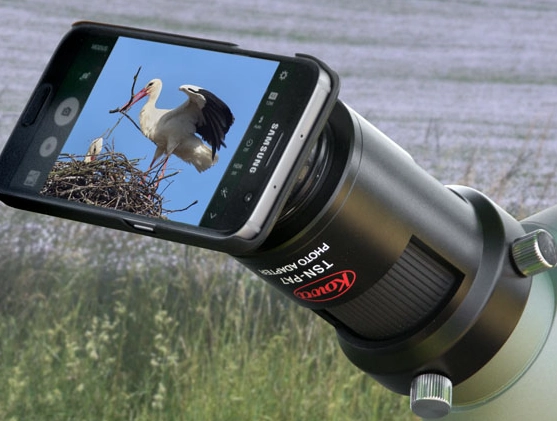
You have two main choices: universal clamp-style adapters and model-specific magnetic cases. After testing over a dozen, here's my take. The universal clamp (like those from Phone Skope or Novagrade) is the most versatile. It has adjustable arms that grip your phone, and a ring that screws onto your scope's eyepiece. The big advantage? It works with almost any phone, even with a case on. The downside? It can be slightly fiddlier to attach quickly when a bird appears.
The magnetic case system (pioneered by Moment but now adopted by brands like Swarovski Optik for their digiscoping modules) is sleek and fast. You keep a thin case on your phone, and the adapter snaps to it magnetically. It's brilliant for speed. But you're locked into that ecosystem, and if you change phone models, you might need a new case and adapter.
My non-consensus advice? Start with a good universal clamp. The flexibility is worth the 10-second setup time.
Pro Tip Most Guides Miss: The adapter's weight and balance matter more than you think. A heavy, front-heavy adapter will strain the eyepiece focuser on your scope over time. Look for lightweight aluminum or composite materials. Before buying, check online reviews from bird photographers, not just general tech sites.
Spotting Scope vs. Binoculars: Which is Better for Digiscoping?
Spotting scopes are the gold standard, no question. Their larger objective lenses (65mm, 80mm, 85mm) gather more light, resulting in brighter, higher-contrast images, especially in dawn or dusk conditions. The angled eyepiece is also a godsend for comfort when your setup is on a tripod.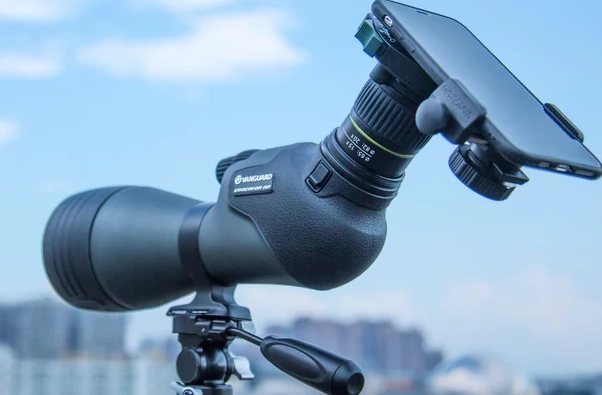
But what if you only have binoculars? You can absolutely digiscope with them. I've gotten identifiable shots of warblers using my 8x42 binoculars and a simple adapter. The key is managing expectations. Your magnification is fixed (e.g., 8x or 10x), and image quality, especially in low light, won't match a scope. It's perfect for documentary shots or when you want to travel ultra-light. Brands like Opticron and Celestron make adapters specifically designed for binocular eyecups.
The Alignment Secret: It's Not About Centering
Here's the subtle error almost every beginner makes: they try to perfectly center their phone's camera lens with the scope's eyepiece. This seems logical, but it often leads to stubborn vignetting (those black corners).
The real goal is to align the phone's camera sensor with the exit pupil of the eyepiece. The exit pupil is that circle of light you see floating above the eyepiece when you hold the scope at arm's length. Your phone needs to "see" that entire circle.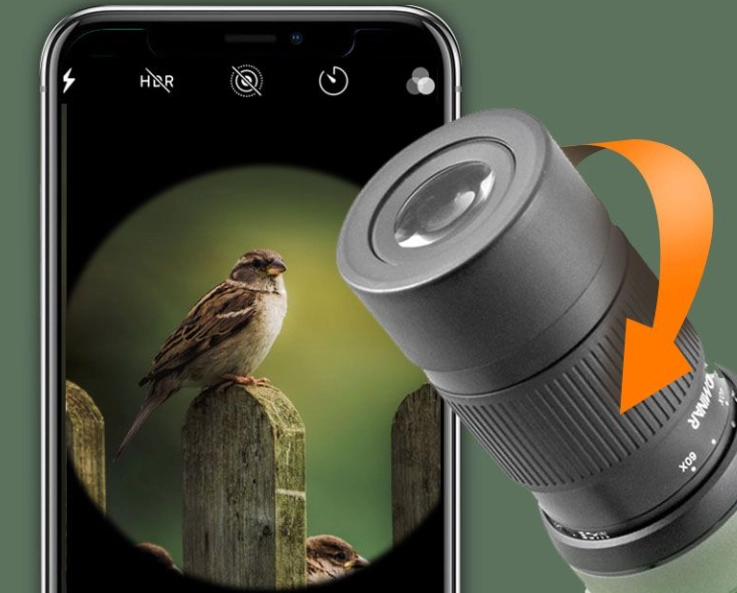
My field-tested method:
- Mount your phone in the adapter, but don't tighten it down all the way yet.
- Open your phone's camera app. Turn on the gridlines if you have the option.
- Hold the whole assembly loosely against the eyepiece. Look at the phone screen.
- Now, slowly slide the phone up/down/left/right in the adapter's clamp. Watch the screen. You'll see the vignetting shrink and eventually disappear as the sensor finds the "sweet spot." This spot is rarely dead center.
- Once the image is clear and corner-to-corner bright, tighten the clamp.
This 30-second process saves hours of post-processing trying to crop out black edges.
Forget Auto Mode: Smartphone Camera Settings for Digiscoping
Your phone's automatic mode is built for well-lit, close-up subjects like people and food. It fails miserably for a small, distant bird against a bright sky. You need to take control.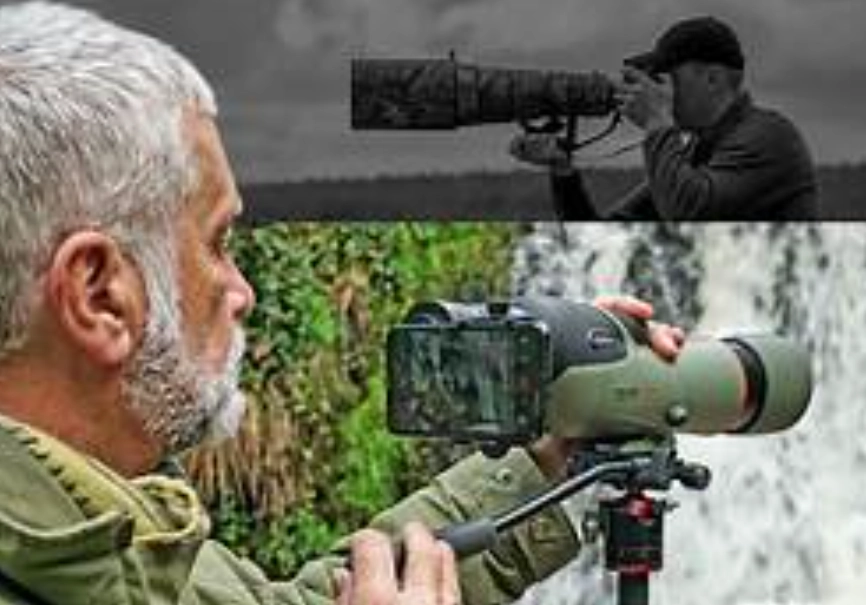
If your phone has a "Pro" or "Manual" mode, use it. Here’s your priority list:
1. Shutter Speed (The Blur Killer): This is the #1 setting. Auto mode will choose a slow speed, making every tiny hand tremor a blur. For handheld digiscoping (even with support), never go slower than 1/500th of a second. For perched birds, aim for 1/1000s. For birds in flight, you need 1/2000s or faster. This forces you to raise the ISO, but a grainy sharp photo is always better than a smooth blurry one.
2. ISO (The Grain Manager): Set this manually. Start around ISO 200 on a sunny day. As you increase shutter speed, you'll need to raise the ISO to keep the image bright enough. Don't be afraid of ISO 800 or 1600 on modern phones; the noise is manageable. Letting the phone choose ISO often results in a noisy image and a slow shutter – the worst of both worlds.
3. Focus: Tap to focus on your subject, then lock the focus (on iPhones, touch and hold; on many Androids, look for a lock icon). Scenes through a scope have very little contrast, causing the autofocus to "hunt" constantly. Lock it down.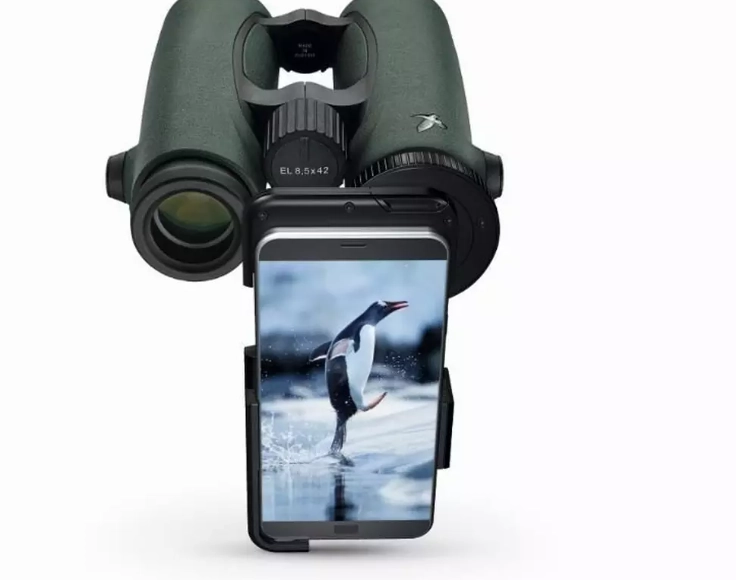
4. White Balance: Set it to "Daylight" or "Sunny" for consistency. Auto white balance can shift weirdly between shots of the same bird.
No Pro mode? Use your phone's built-in "Action" or "Sports" scene mode. It prioritizes faster shutter speeds. Or, use a third-party app like ProCamera or Camera FV-5 that gives you manual controls.
The 5-Step Digiscoping Field Workflow (From Spotting to Saving)
Let's walk through a real scenario. You're at a wetland, and a great blue heron lands across the pond.
Step 1: Scope First, Phone Second. Use your scope alone to find, focus on, and frame the bird. Get a sharp optical view. This is crucial. Trying to find a tiny bird on your phone's screen while fiddling with scope focus is a nightmare.
Step 2: Attach and Align. Smoothly attach your pre-mounted phone adapter to the eyepiece. Use the alignment method above to eliminate vignetting. This should take 15 seconds with practice.
Step 3: Set Exposure for the Bird, Not the Sky. The sky is brighter than the bird. Your phone will expose for the sky, leaving the bird a dark silhouette. Tap your screen on the bird's body. On most phones, this sets focus and exposure for that spot. You'll see the sky become brighter, but the bird will be correctly exposed. If needed, use the exposure slider (the little sun icon) that appears to fine-tune.
Step 4: Stabilize and Shoot. This is where most shots are lost. You are a human tripod with a heartbeat. If you're not using a tripod (and you should), brace yourself. Sit down. Kneel and rest your elbows on your knees. Lean against a tree. Use your body as a sandbag. Hold your breath as you gently press the shutter button. Take multiple shots in rapid succession. The first is often shaky; the third or fourth is usually sharpest.
Step 5: Review and Refocus. Zoom in on your screen to 100% and check for feather detail. Is it sharp? If not, did you move, or did the bird move? Make tiny adjustments to the scope's focus knob—through the scope, not the phone—and shoot again.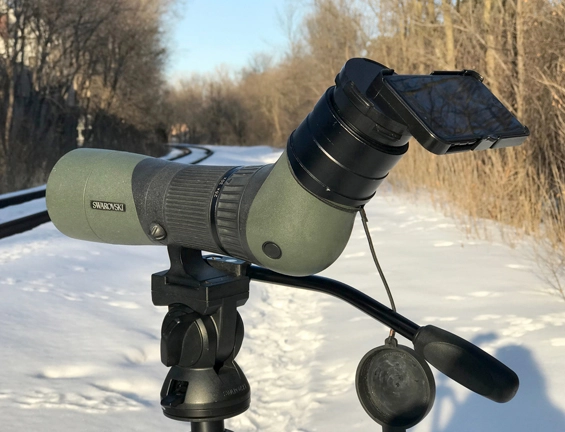
Solving the Three Biggest Digiscoping Headaches
| Problem | What's Causing It | The Fix |
|---|---|---|
| Vignetting (Black Corners) | Phone camera sensor is not aligned with the scope's exit pupil OR the eyepiece's eye relief is too short for the adapter. | Use the sensor alignment method described above. If it persists, try zooming your phone's digital zoom in slightly (1.1x-1.3x). This crops the sensor's view, often cutting off the vignette. A better long-term fix is an eyepiece with longer eye relief. |
| Soft or Blurry Images | 1. Shutter speed too slow (camera shake). 2. Scope is not in perfect focus. 3. Atmospheric haze/heat shimmer. |
1. Mandatory: Increase shutter speed to 1/1000s or faster. 2. Focus through the scope with your eye first, then fine-tune while looking at the phone screen. 3. Shoot early in the morning. There's no fix for midday heat shimmer. |
| Glare & Lens Flare | Sunlight hitting the front objective lens of the scope or the phone's camera lens directly. | Use a lens hood on your scope. For the phone, fashion a simple shade from black cardstock or foam and tape it to the adapter. Always try to position yourself so the sun is behind you or to the side. |
Digiscoping Questions You Were Afraid to Ask
The beauty of digiscoping with a smartphone is its immediacy. That fleeting moment with the indigo bunting? With practice, you can go from spotting it to having a sharp, shareable photo in under a minute. It turns observation into documentation without breaking your back or your bank. Start with a solid adapter, master the alignment, command your camera settings, and embrace the learning process. Your best shots are still out there, waiting for you to connect the dots.
Reader Comments